How To Use
CorridorKey by LateNite is currently in a public beta testing phase. 👷
We're just using a placeholder icon for now (taken from VFX Toolbox).
Standalone Editor
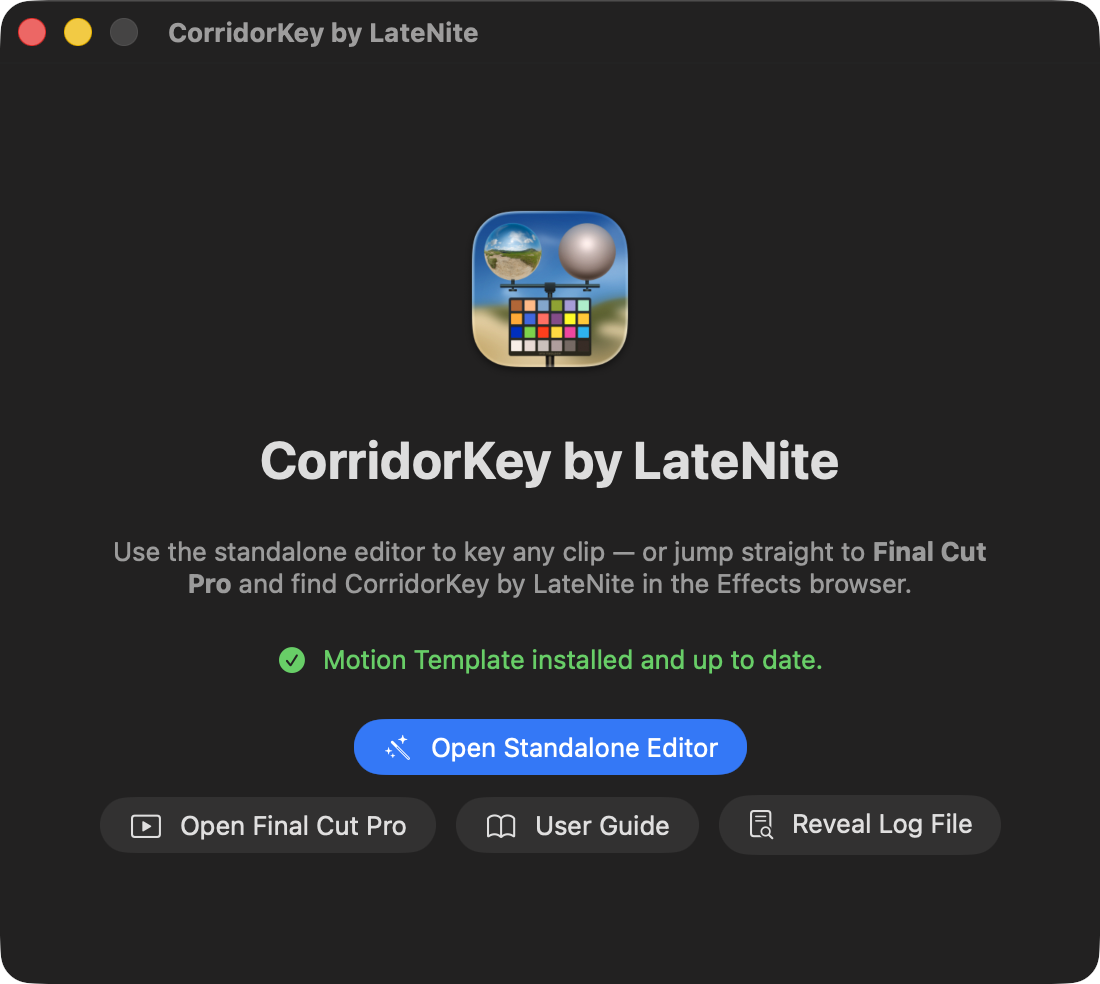
Run CorridorKey by LateNite from your /Applications folder.
Click Open Standalone Editor.
You can now load in a clip.
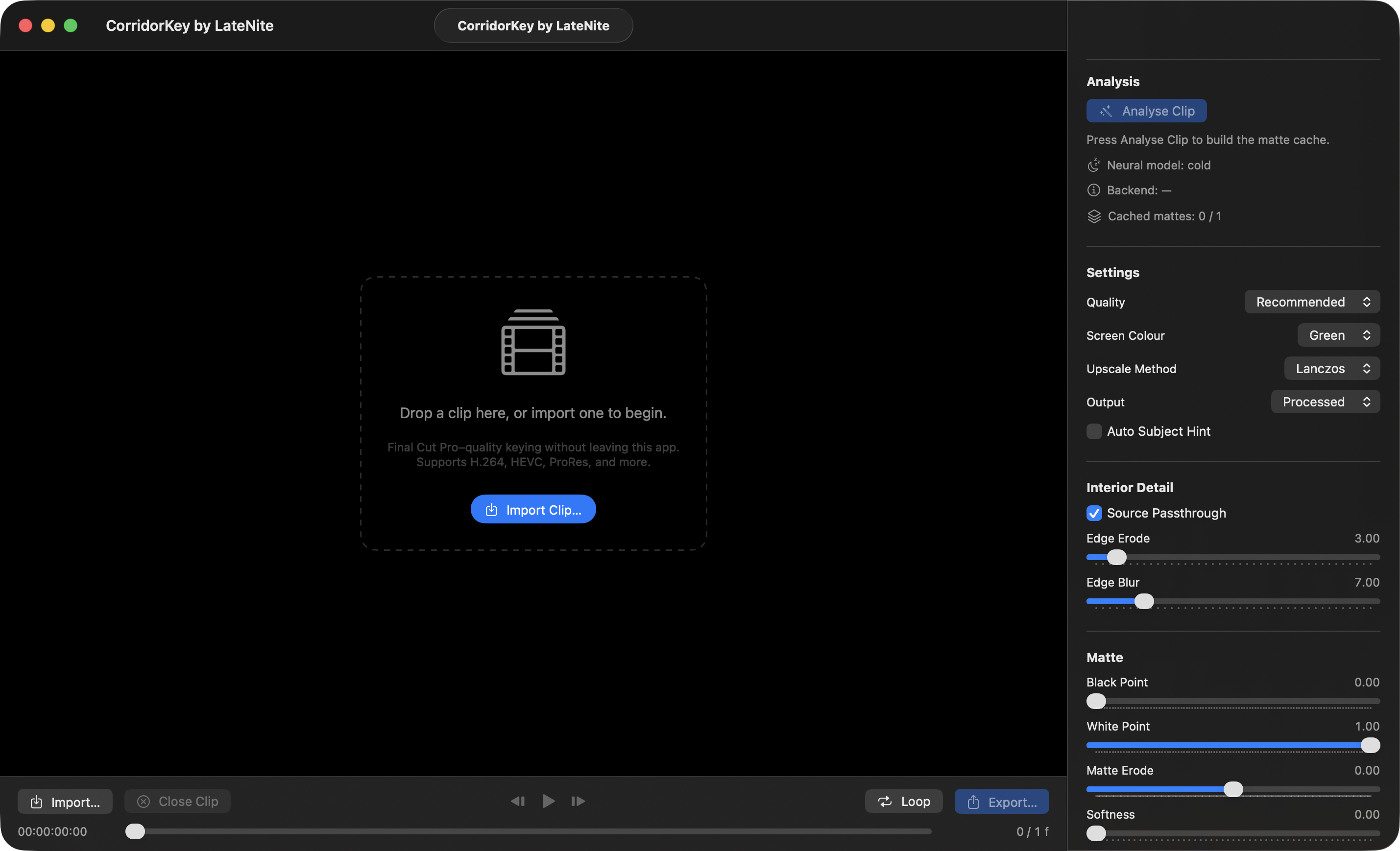
First pick your:
- Quality (it defaults to Recommended)
- Screen Colour (it defaults to Green)
- Upscale Method (it defaults to Lanczos)
- If you want to use Apple's Vision Framework to do the hint tick Auto Subject Hint
- Alternatively, you can use Show Subject Marker to manually select the foreground object in your Viewer
Then press Analyse Clip:
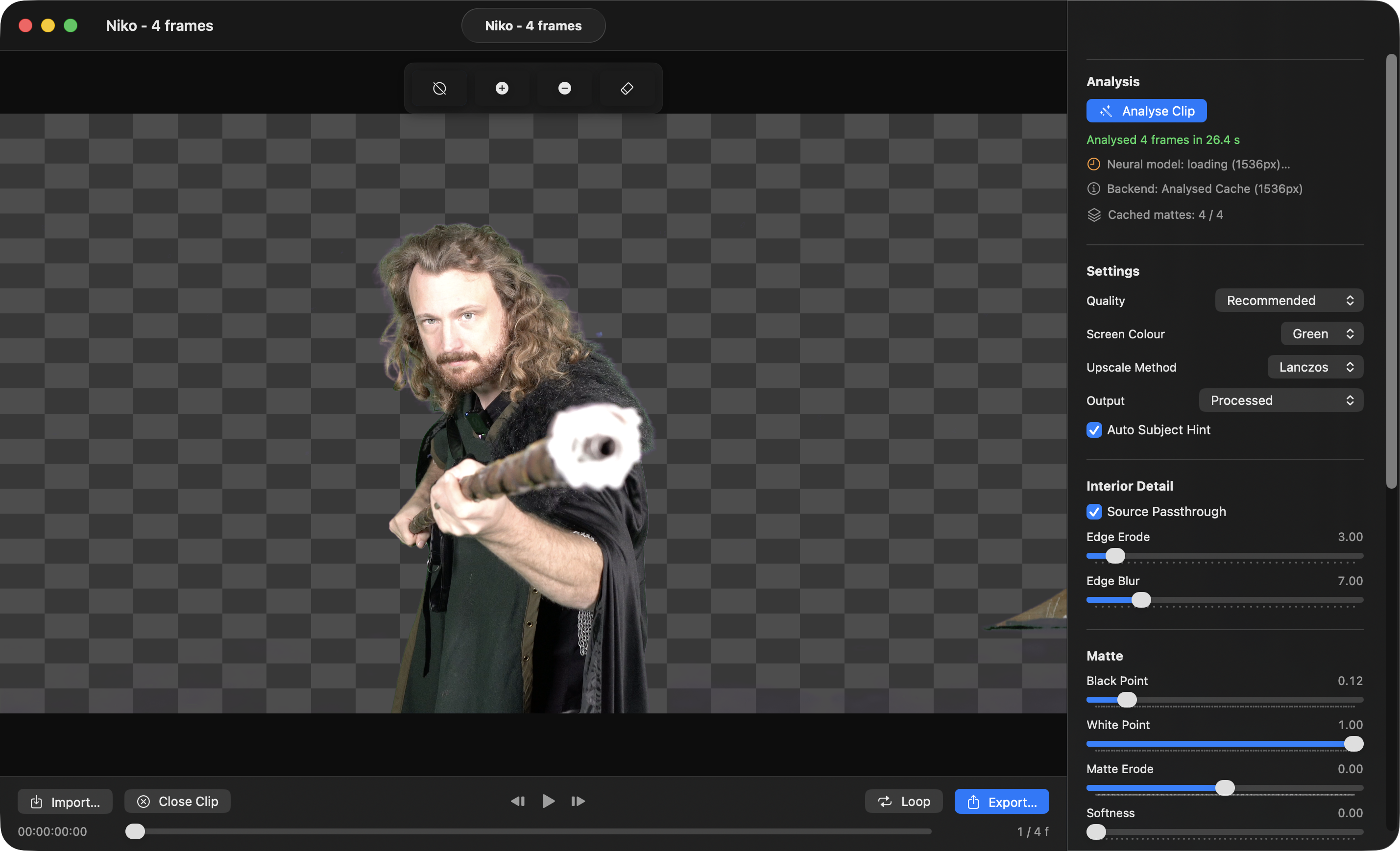
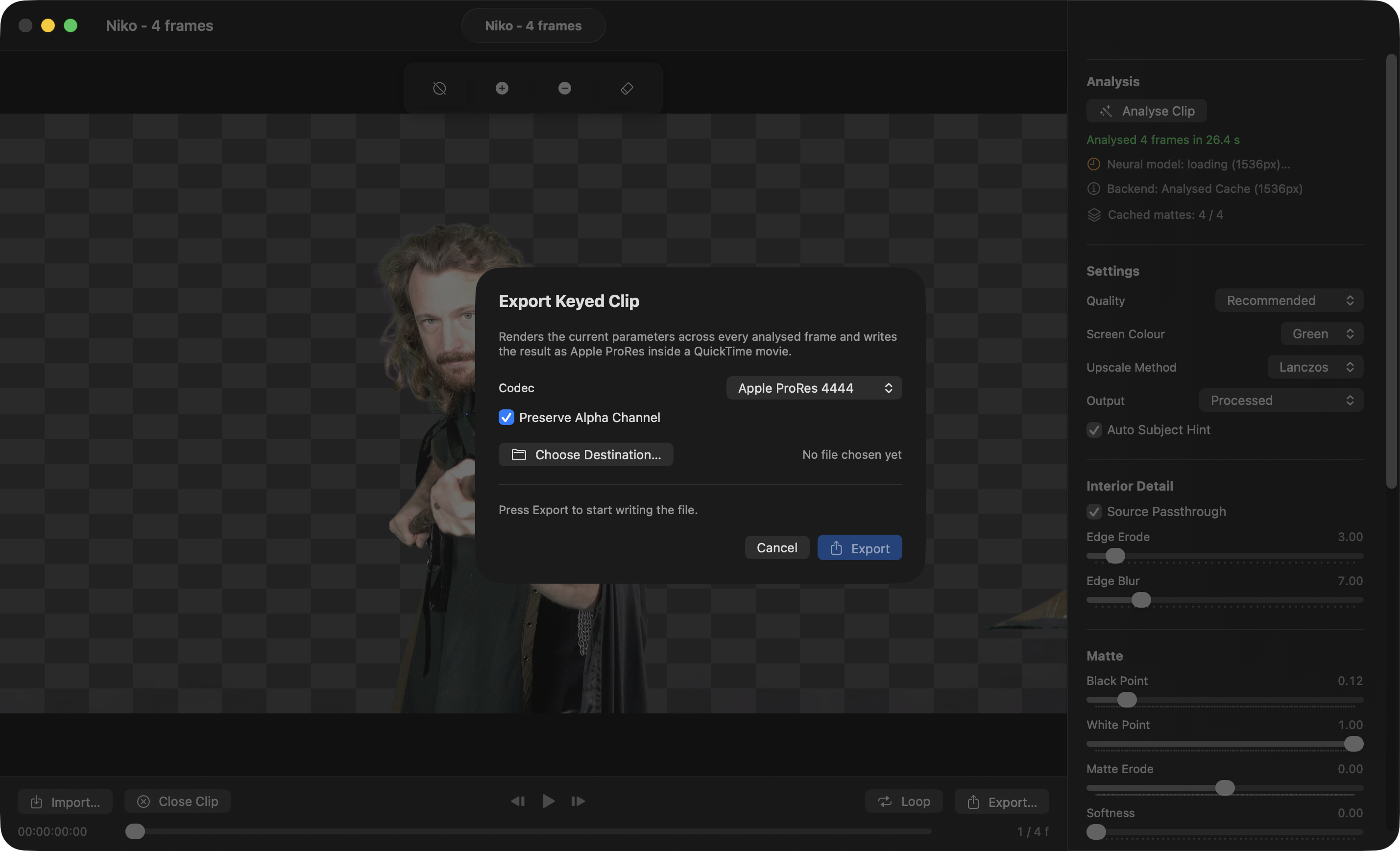
Once you're happy to you can export your result as ProRes or HEVC (with alpha):
Final Cut Pro
Run CorridorKey by LateNite from your /Applications folder.
It will look like this:
CorridorKey by LateNite will automatically install the Motion Template in this folder:
/Users/YOUR-USER-NAME/Movies/Motion Templates.localized/Effects.localized/CorridorKey by LateNiteClick the Open Final Cut Pro button to launch Final Cut Pro.
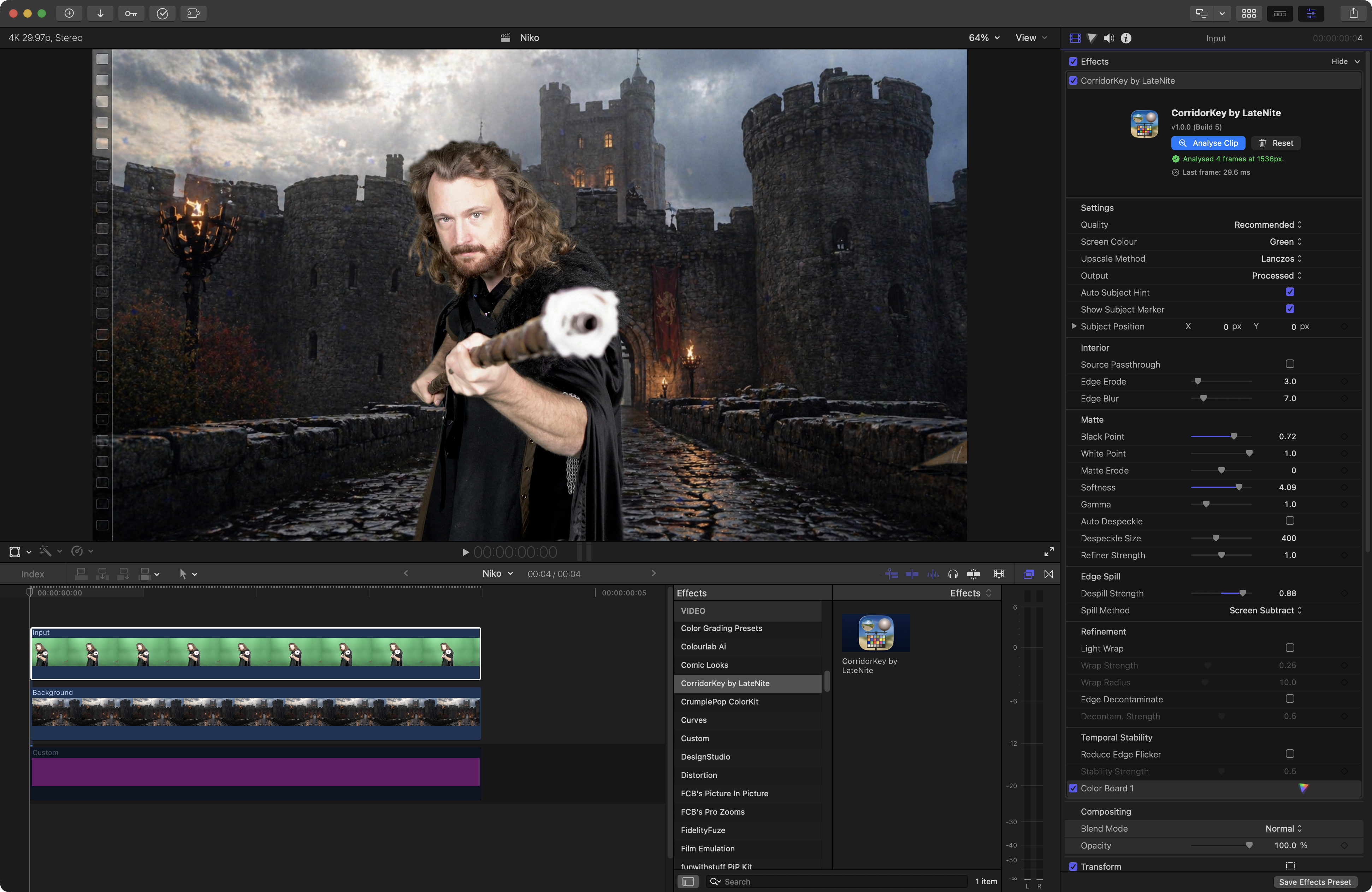
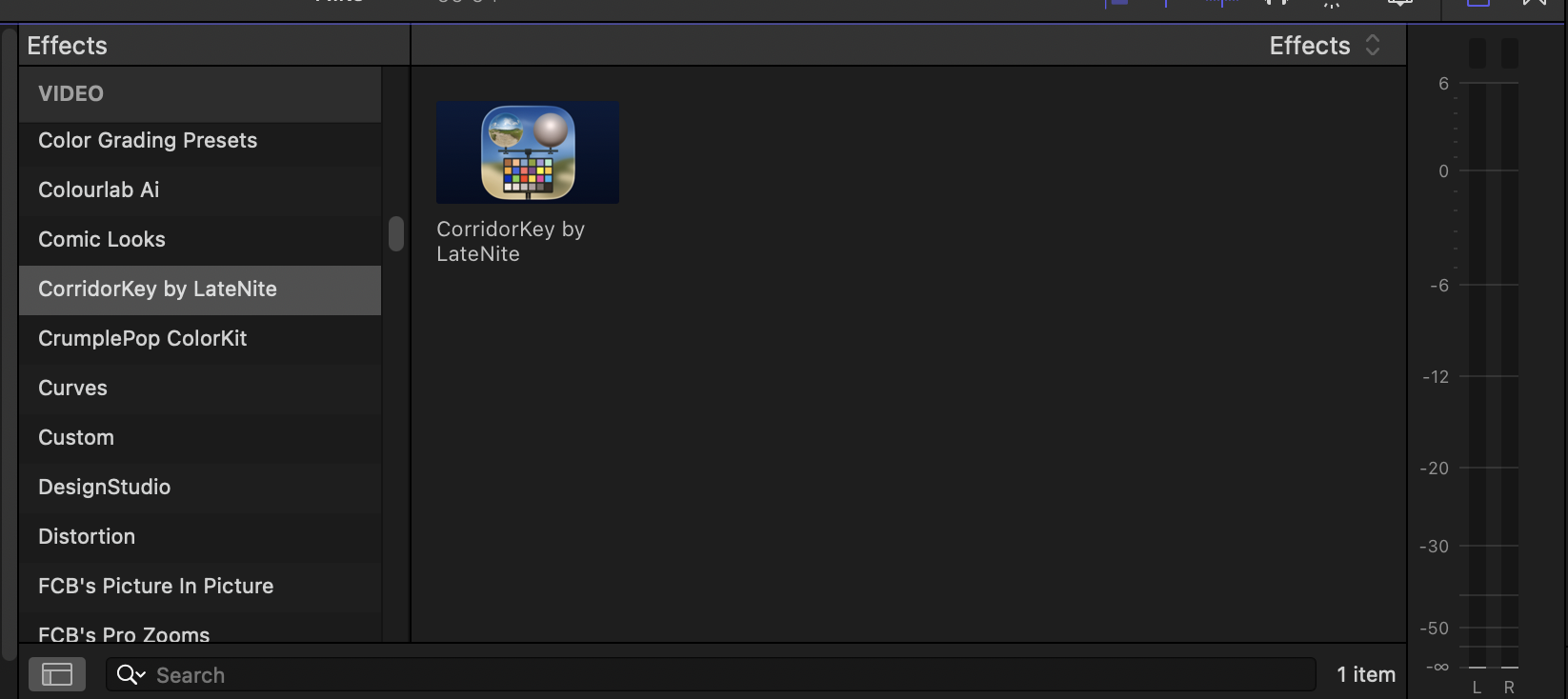
You can then apply the CorridorKey by LateNite effect to your clips from the Effects Browser:
First pick your:
- Quality (it defaults to Recommended)
- Screen Colour (it defaults to Green)
- Upscale Method (it defaults to Lanczos)
- If you want to use Apple's Vision Framework to do the hint tick Auto Subject Hint
- Alternatively, you can use Show Subject Marker to manually select the foreground object in your Viewer
Then press Analyse Clip:
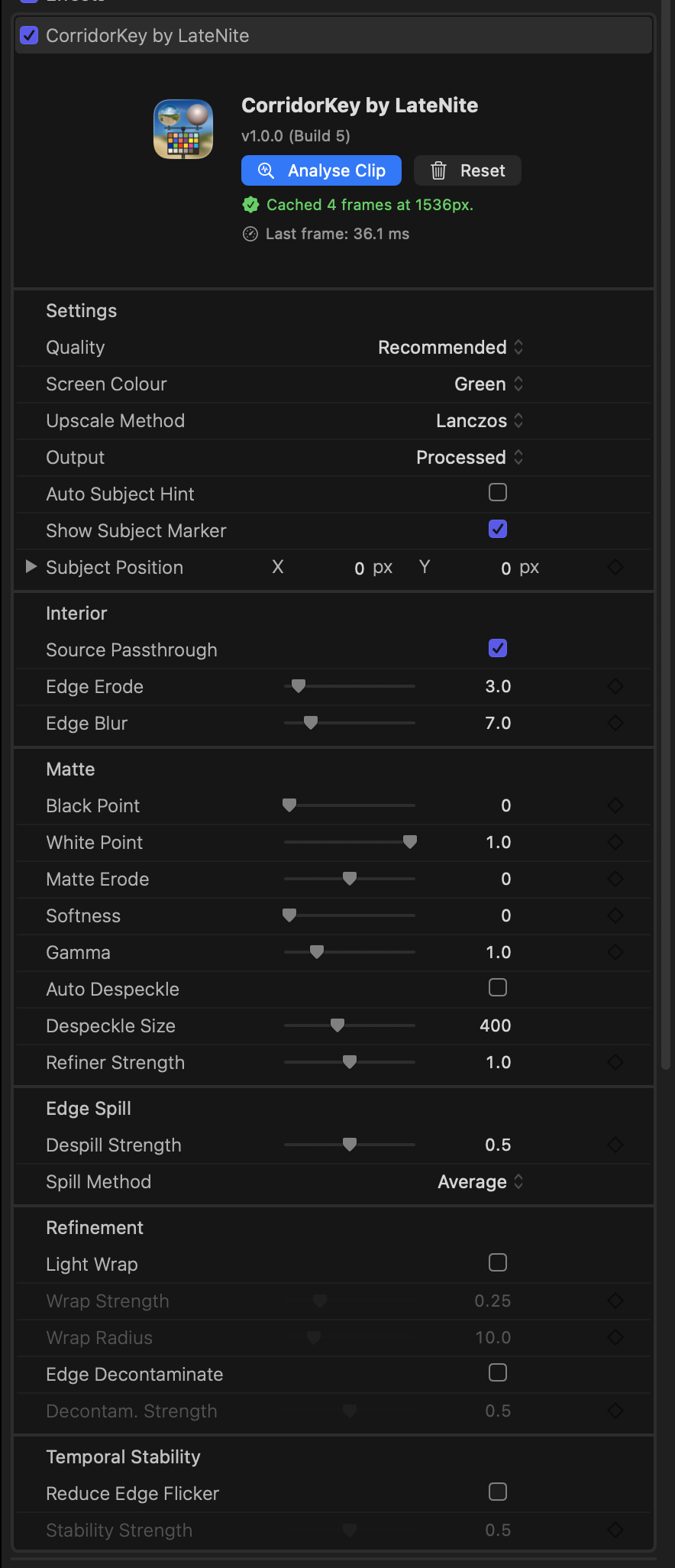
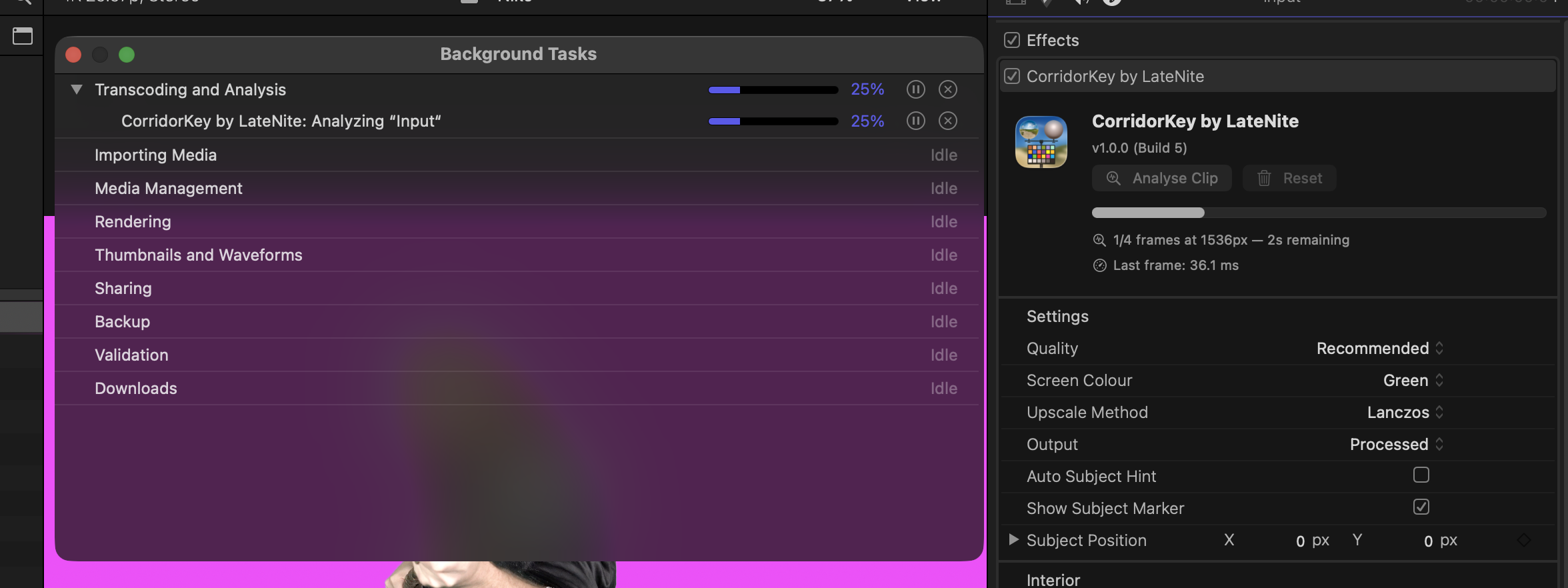
You'll see a progress bar:
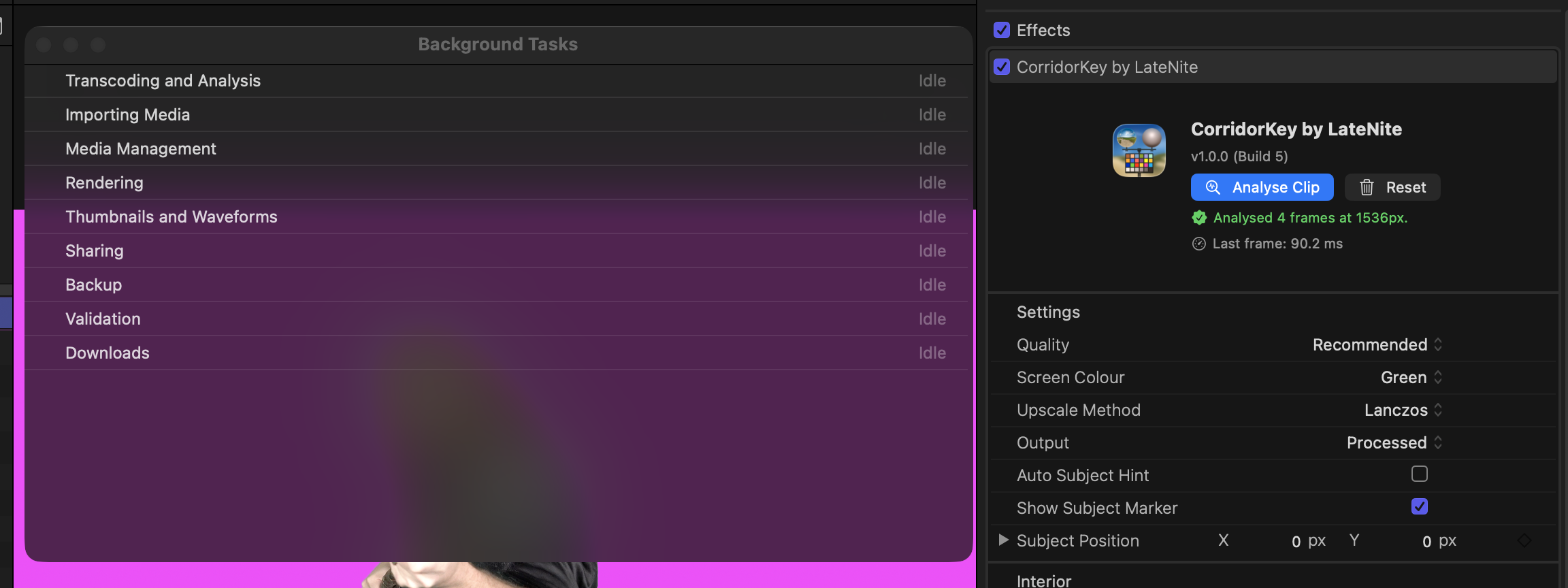
Then once done, you'll see it's complete:
You can now adjust the other properties as you want to get best results.
Setting the Output to Matte Only can be helpful initially to get suitable values:
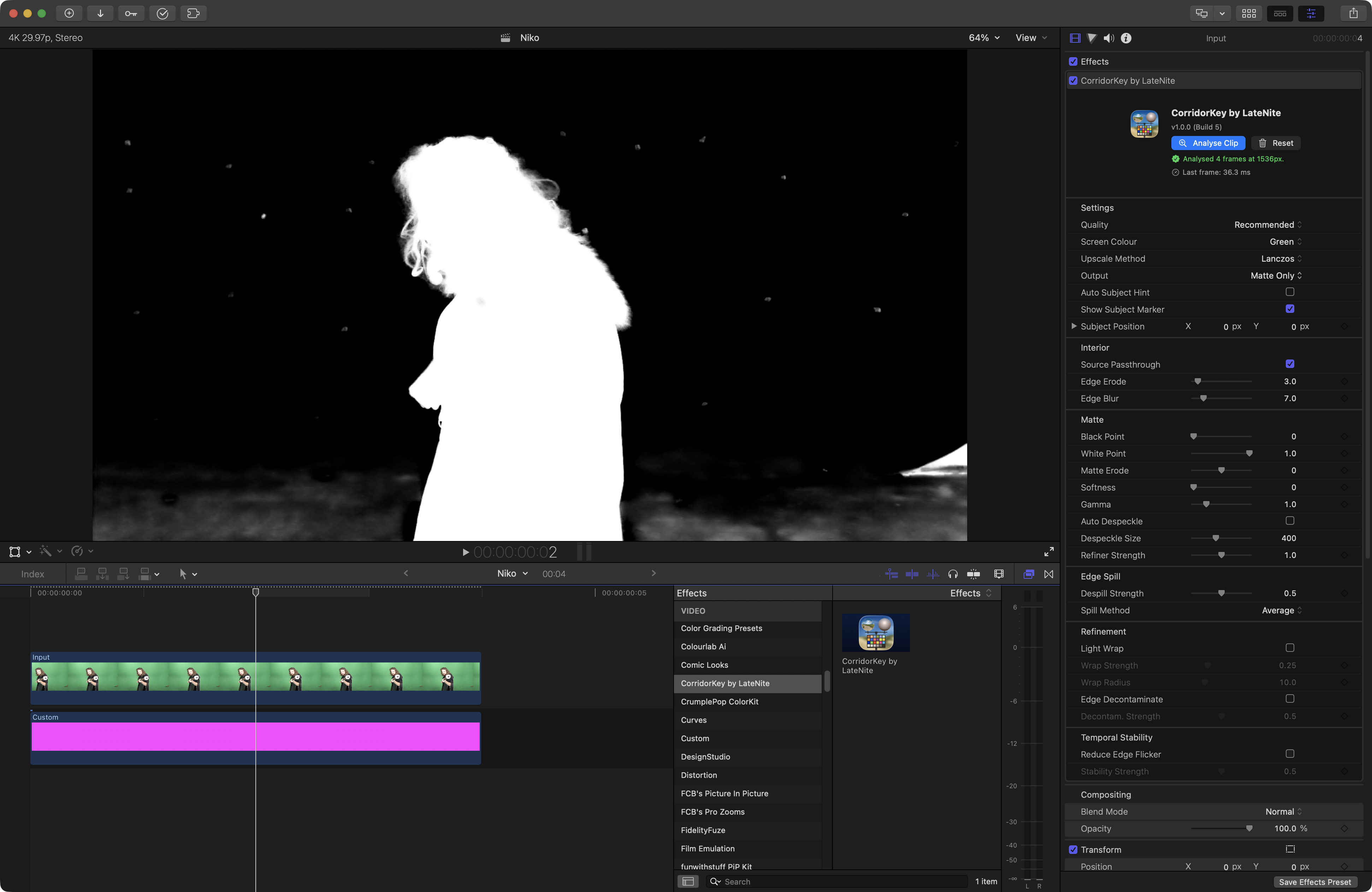
You can then tweak all the parameters until you get a result you're happy with: